How to Use PrepCat’s Syllabus Tracker: Turn Your UPSC Syllabus into a Daily Study Plan
Akshay
A screenshot-led guide to selecting subjects, updating subtopic status, filtering your revision backlog and using topic quizzes in PrepCat’s Syllabus Tracker.
A long syllabus is easier to work with when it becomes a set of small, visible decisions: what you have covered, what remains unfinished and what needs another revision. PrepCat’s Syllabus Tracker gives those decisions a home. This guide walks through the actual page and shows how to turn its controls into a practical study routine.
About the screenshots: These are real captures from PrepCat, checked on 17 October 2026. The progress figures belong to the account used for the demonstration; they are examples, not targets for your preparation. Counts, available subjects and the interface can change.
1. Open the tracker and read your starting position
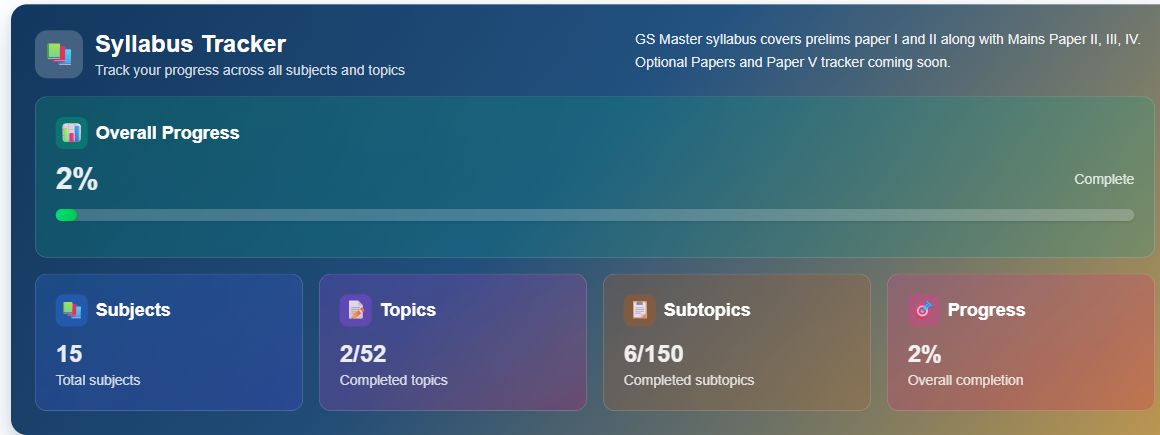
Sign in and choose Syllabus Tracker in the main navigation. Allow the progress data to load. The top panel shows Overall Progress, the number of subjects, completed topics and completed subtopics. It helps answer a useful first question: where does my recorded coverage stand today?
Screenshot 1: Open the dashboard and progress cards — view full-size screenshot
The captured unfiltered view shows 15 subjects, 2/52 completed topics and 6/150 completed subtopics, alongside a displayed 2% overall figure. Read each indicator according to its own label. Do not assume that dividing the completed-subtopic count by the subtopic total reproduces the overall percentage: the page does not explain that calculation in the view inspected.
Why it matters: A visible starting point helps you choose a realistic next task. It is more useful than repeatedly estimating how much of a large subject you have “probably finished”.
2. Choose a subject, then open a topic
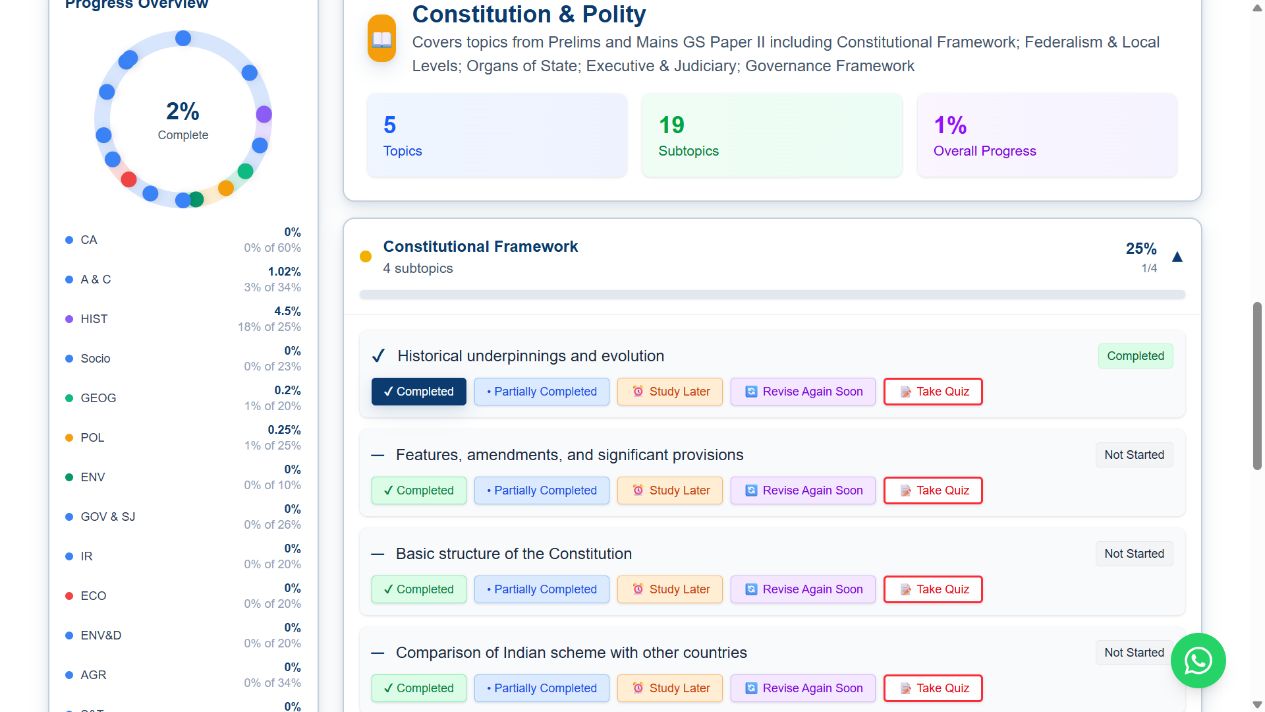
Use the subject buttons to move between areas such as History, Geography, Constitution & Polity, Economy, Science & Technology and Aptitude (Paper II). The selected subject is highlighted. Its description and topic/subtopic counts appear in the main panel; a Progress Overview chart sits alongside it.
For example, select Constitution & Polity, then click Constitutional Framework. The topic expands into subtopics, including Historical underpinnings and evolution, Features, amendments, and significant provisions, Basic structure of the Constitution, and Comparison of Indian scheme with other countries.
Screenshot 2: See an expanded topic and its subtopic controls — view full-size screenshot
Use the smallest useful unit. Instead of writing “finish Polity”, choose one named subtopic and one concrete task, such as recalling the meaning of the basic structure doctrine and practising relevant questions. This is a suggested planning method; the tracker records the status you choose.
3. Give each subtopic an honest status
In the expanded topic, each subtopic has a status label and buttons for Completed, Partially Completed, Study Later and Revise Again Soon. Untouched entries in the demonstration are labelled Not Started. The meanings below are practical ways to use the available controls, rather than automatic judgements made by PrepCat.
Completed: Use when you have covered the planned material to a standard you can explain. A useful personal check is to recall the main ideas without looking, then try relevant questions. Completed does not mean permanently mastered.
Partially Completed: Use when you have begun but a defined portion remains. Keep the unfinished task in your notebook or planner so that the label leads to a specific next action.
Study Later: Use to defer a subtopic deliberately. Pair it with a date in your own plan; otherwise “later” can become an indefinite holding area.
Revise Again Soon: Use when a previously studied area feels weak or needs another pass. Return to it for recall and practice rather than simply rereading it until it feels familiar.
Update the status after an actual study session. Avoid marking a whole subject complete merely because you watched a lecture series or finished highlighting a book. The value of the tracker depends on the accuracy of your own entries.
4. Use filters to build a focused work list
The Filter by Status bar contains the same four status categories. Click a filter to view matching work. For example, Partially Completed can help you identify unfinished work, while Revise Again Soon can help you select a revision task. Completed helps you review what you have already marked as covered.
Screenshot 3: See the Completed filter and Clear filters control — view full-size screenshot
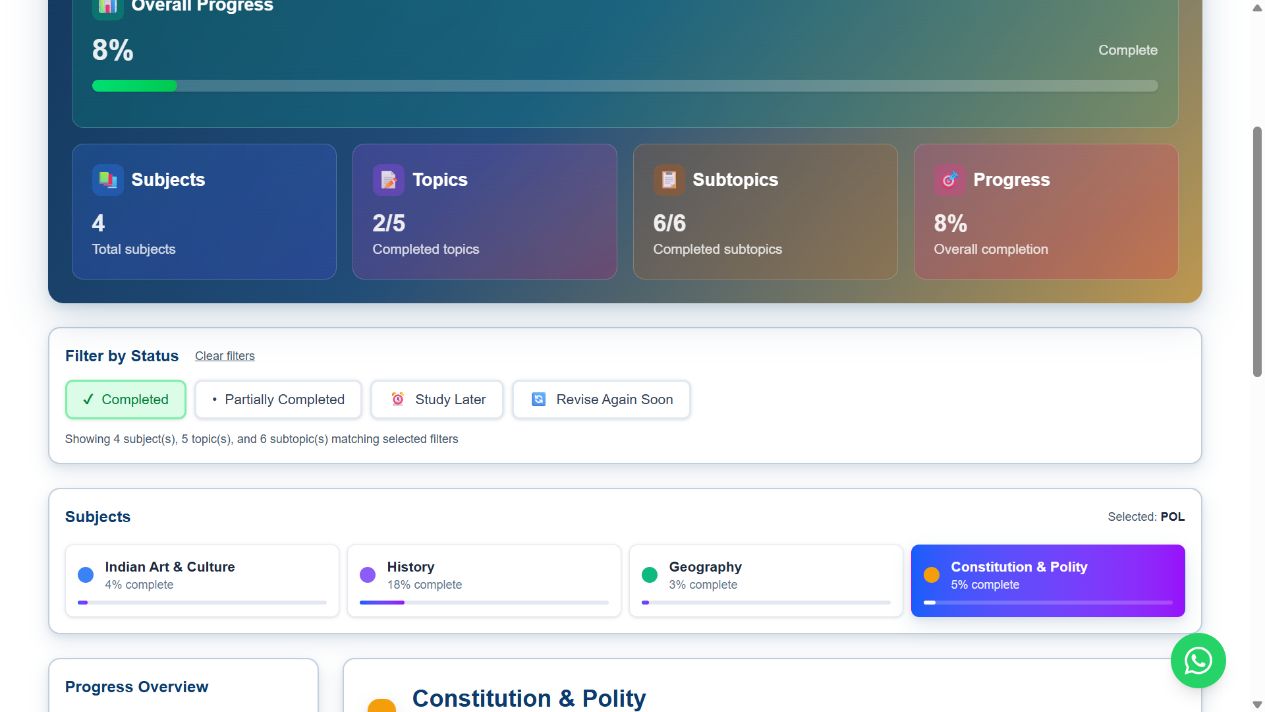
A detail worth remembering: In the observed interface, applying Completed changed the displayed counts to four subjects, five topics and six subtopics, and the displayed overall figure changed from 2% to 8%. That was a change of view, not evidence that studying had occurred. Read the “matching selected filters” message and use Clear filters before comparing your full dashboard with an earlier unfiltered view.
5. Open a subtopic quiz to check understanding
The expanded subtopics include a Take Quiz button. In the quiz inspected for Historical underpinnings and evolution, a panel opened with the subject → topic → subtopic path, question and answered counters, answer options, numbered question navigation, Previous/Next controls, Full screen and Close quiz.
Choose a quiz available for the subtopic you are studying. Attempt it attentively and use your mistakes to identify what needs revision. Do not infer that every subtopic has an available quiz from this single example, or treat one quiz result as a complete measure of UPSC readiness. Where a question is labelled as a previous-year question, consult the official UPSC paper when you need to verify its attribution.
6. Follow a simple weekly loop
Plan: Clear filters, inspect your subjects and choose a small number of subtopics that fit your available time.
Study: Work on one subtopic with a defined source and a clear stopping point.
Check: Recall the key ideas without notes and practise relevant questions, using a tracker quiz where available.
Record: Choose the status that honestly describes your progress.
Review: Revisit Partially Completed and Revise Again Soon, then clear filters to review your wider coverage.
For example, you might study the basic structure doctrine in one session, record it as Partially Completed if cases remain, and return for recall and questions before marking your planned coverage complete. If you later struggle to explain it, use Revise Again Soon. The point is to make the next action clear, not to protect a reassuring percentage.
What the tracker is useful for—and its limits
The tracker makes recorded coverage visible, breaks broad subjects into manageable tasks and helps you find unfinished or revision work. It can support a calmer review of your preparation because you are looking at named tasks rather than an undefined backlog.
It still needs to be used alongside your books, notes, practice and the current official UPSC syllabus. The page currently says Optional Papers and Paper V tracking are coming soon; do not assume every examination component is covered. This walkthrough verified the controls described above, without establishing automatic reminder scheduling or automatic timetable generation.
Start with one useful update
Open PrepCat’s Syllabus Tracker, select a subject and expand one topic. Choose one subtopic you can work on today. Study, check your understanding and record an honest status. Repeating that small loop makes the tracker useful: it connects what you have done with what you should do next.
Source: Direct inspection of the signed-in PrepCat Syllabus Tracker, 17 October 2026. The routines in this guide are suggestions, not promises of an exam outcome.